
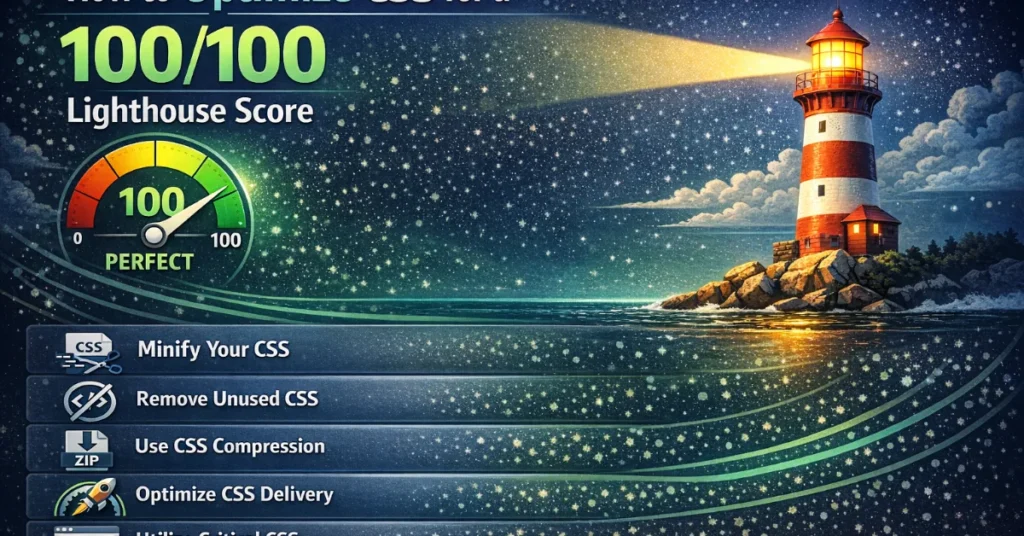
How to Optimize CSS for a Flawless 100/100 Google Lighthouse Score
Achieving a perfect 100/100 Google Lighthouse score isn’t a vanity metric—it is a direct reflection of your site’s health, user experience, and search engine ranking potential. While developers often focus heavily on optimizing JavaScript or shrinking images, unoptimized CSS is frequently the silent culprit destroying your Core Web Vitals. In 2026, styling efficiently is mandatory. Here is exactly how to optimize your CSS to ace your Lighthouse audit.
The Lighthouse Penalty: How CSS Blocks Rendering
Before diving into the exact optimization techniques, you need to understand why Lighthouse penalizes your stylesheets. The primary reason is that CSS is inherently a render-blocking resource.
When Google bot or a human user hits your URL, the browser downloads the HTML and starts reading it from top
to bottom. It immediately begins constructing the Document Object Model (DOM). However, the moment the
browser encounters a <link rel="stylesheet"> tag in your document’s head, it must stop
rendering the page. It has to download that entire CSS file, parse it, and build the CSS Object Model
(CSSOM). Only when the DOM and CSSOM are perfectly combined can the browser paint pixels to the screen.
If you force the browser to download a massive, bloated CSS file before it can show anything, your Lighthouse report will be lit up with massive red warnings for First Contentful Paint (FCP) and Largest Contentful Paint (LCP). Here is the step-by-step methodology to fix this.
1. Eliminate “Remove Unused CSS” Warnings
This is arguably the most common and damaging warning in a Lighthouse report. Over the lifespan of a web application, developers introduce new features, redesign components, and integrate massive framework libraries (like Bootstrap, Tailwind, or Foundation). When old features are removed from the HTML, developers almost never remember to delete the corresponding CSS rules scattered across dozens of files.
Lighthouse runs your page, checks which CSS selectors actually match elements currently on the DOM, and flags the rest as dead weight. Why force users on a 3G mobile data connection to download styles for a carousel that doesn’t even exist on this page?
How to Purge Effectively
You cannot manually read through 10,000 lines of CSS to find unused code. You need automated tooling integrated into your build pipeline. Tools like PurgeCSS or UnCSS analyze your HTML templates, your JSX, or your Vue components during the build process. They literally read your markup, map it against your CSS files, and permanently strip out any CSS class that is not actively being used.
If you are injecting raw CSS files manually, open Google Chrome, navigate to the Coverage Tab in DevTools, and reload the page. Chrome will highlight every single line of CSS in bright red that the browser downloaded but never used to paint the current view. Delete that red code.
2. Master the “Extract Critical CSS” Pattern
Even if you purge unused CSS, the browser still has to download the stylesheet before rendering. To achieve a 100/100 score, Lighthouse demands that you optimize the Critical Rendering Path.
Critical CSS refers to the absolute exact styling rules required to render what the user sees immediately upon page load—the “above-the-fold” content. This includes your header, main navigation, typography rules, hero section background, and initial layout wrappers.
The Inline Implementation
To implement this, you must extract those specific critical styles and inject them as an inline
<style> block directly right into the <head> of your HTML document.
The browser reads the HTML, sees the inline styles, and can instantly paint the hero section without waiting
for an external network request.
<!-- Critical CSS is inlined for instant FCP -->
<style>
  body { font-family: 'Inter', sans-serif; margin: 0; }
  .navbar { display: flex; justify-content: space-between; padding: 1rem; }
  .hero-banner { min-height: 80vh; background: #0f172a; color: white; }
</style>

<!-- Non-critical CSS (footer, modals, below-fold content) is deferred -->
<link rel="preload" href="/css/main.min.css" as="style" onload="this.onload=null;this.rel='stylesheet'">
<noscript><link rel="stylesheet" href="/css/main.min.css"></noscript>
The remaining 90% of your CSS (footer styles, complex grid alignments for lower sections, modal popups) is then loaded asynchronously. This one technique alone will dramatically shift your Lighthouse FCP score into the green.
3. Minify and Compress Your Production Assets
Lighthouse will harshly penalize any unoptimized text resources. When you write CSS, you use spaces, tabs, newline characters, and copious comments to keep the code human-readable. The browser’s CSS parser does not care about your beautifully indented architecture; it only cares about syntax. Every single space is a byte of data a user has to download.
Your production pipeline must automatically minify your CSS. This means stripping out all whitespace and comments, renaming long variables where safely possible, and outputting an incredibly dense code block. If you are developing locally without a complex build pipeline like Webpack or Vite, you can format your clean source code with a Code Formatter, but you must paste the final output into an aggressive minifier before uploading it to your web server.
Furthermore, ensure your web server (Nginx or Apache) is configured to utilize Brotli or Gzip compression. Sending raw, uncompressed text over the network is disastrous for performance. Brotli compression can frequently reduce your minified CSS file by a further 70%.
4. Eradicate Layout Shifts (CLS) with Native Math
Cumulative Layout Shift (CLS) is a massive factor in Lighthouse scoring. CLS measures “jank”—when a user tries to read a paragraph, but a late-loading element suddenly pushes the text down the screen.
While images without width/height attributes are the most common cause of CLS, poorly written CSS is a close second. Heavily relying on complex JavaScript calculations to determine container heights, or using hundreds of conflicting CSS media queries to abruptly resize padding and fonts at different breakpoints, often causes layout jitter midway through the page load.
The modern solution is to delegate layout mathematics entirely to the browser rendering engine using native
CSS features. Instead of rigid media queries, implement fluid typography and fluid spacing using CSS
clamp() functions. Because manually calculating fluid intersection slopes is mathematically
complex, utilize tools like a Fluid Typography Calculator and a Fluid Spacing Generator.
By defining your layout scales once at the root with clamp() generated variables, the browser
scales your padding, margins, and text perfectly in tandem with the viewport. No sudden jumps, no Javascript
recalculations, just perfectly smooth, zero-CLS native scaling.
5. Optimize CSS Selectors and Paint Complexity
Lighthouse evaluates how hard the browser has to work to paint your page. If your CSS is full of incredibly expensive properties, the browser will struggle to hit a smooth 60 frames per second, destroying the Time to Interactive (TTI) metric.
Flatten Your Selectors
Because CSS is parsed from right to left, deep nesting is a performance killer. A selector like
body main .article-wrapper div.content > p a.highlighted forces the browser to scan massive
portions of the DOM tree to verify relationships. Adopt flat, class-based architectures like BEM. A single
class selector (e.g., .article-highlight) evaluates almost instantly.
Hardware Acceleration for Animations
If Lighthouse detects that your page is lagging during rendering, check your animations. You should never animate properties that trigger layout recalculations, such as `width`, `height`, `margin`, or `top`. Animating these forces the CPU to recalculate the position of every element on the page 60 times a second.
To hit a 100/100 score, limit your CSS animations to properties that can be offloaded to the Graphics
Processing Unit (GPU), specifically transform: translate(), transform: scale(),
and opacity. To ensure your keyframes are mathematically smooth and performant, generate the
complex sequences perfectly using a CSS Animation Keyframe Builder.
Achieving Perfection is an Ongoing Process
A 100/100 Lighthouse score is not a permanent trophy; it is a moving target. As your application scales, CSS bloat will naturally try to creep back in. By setting up strict automated purging, inlining critical CSS, relying on native `clamp()` functions for fluid spacing rather than bloated media queries, and strictly policing layout shifts, you architect a foundation that inherently resists performance rot.
Audit your codebase today: extract your critical above-the-fold styles, purge the dead weight, and watch your Core Web Vitals metrics skyrocket into the green.
You can explore our CSS HUB for more tools that helps.

Sam is a Full-Stack Software Engineer and Cloud Architect. With deep expertise spanning Java, Python, React, and DevOps, he built Toolshref.com to provide developers with lightning-fast, privacy-first tools. Sam specializes in translating complex server-side logic and intricate frontend architectures into zero-fluff, highly actionable guides for modern developers.