
- The Native Way: Use
kubectl get secret ... - The Fast Way: Use our Secure Decoder.
- Warning: Base64 is not encryption.
If you work with Kubernetes, you do this five times a day.
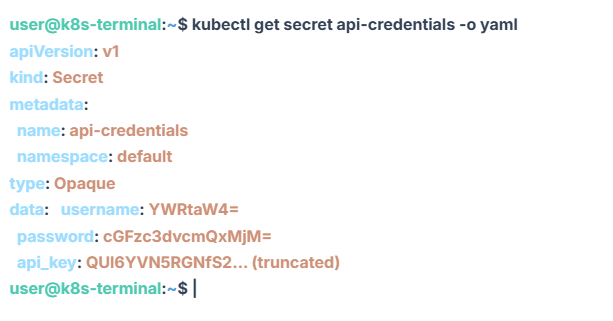
You need to check a database password or an API key stored in your cluster. You run kubectl get secret, and what do you get? A wall of opaque, unreadable text.
Kubernetes stores all secrets as Base64 encoded strings. By default, kubectl keeps them encoded to prevent “shoulder surfing,” but for a DevOps engineer trying to debug a crash, it is just a hurdle.
In this guide, I will show you the “Old School” terminal commands you typically use, and a much faster workflow that saves you from memorizing complex JSONPath syntax.
Method 1: The “Manual” Pipe (The Hard Way)
Most tutorials tell you to use the standard Linux pipe. If you just want to see the whole secret object with values encoded, you run:
kubectl get secret my-db-secret -o yamlThis dumps the YAML. Then, you have to manually copy the string cGFzc3dvcmQxMjM=, type echo, paste it, pipe it to base64, and hope you didn’t paste a newline character.
echo "cGFzc3dvcmQxMjM=" | base64 --decodeWhy this sucks: It’s slow. You have to switch contexts, type commands, and if you are on Windows (PowerShell), the base64 command syntax is completely different.
Method 2: The “JSONPath” One-Liner (The Pro Way)
If you want to feel like a hacker, you can extract and decode a specific key in one go using jsonpath. This is great for scripts, but painful to type from memory.
kubectl get secret my-db-secret -o jsonpath="{.data.password}" | base64 --decodeIf you have a secret with multiple keys (like username, password, host), you have to run this command three separate times.
Method 3: The “Visual” Workflow (The Fastest Way)
Sometimes you just want to see the data without fighting syntax errors.
When you are viewing secrets in a dashboard (like ArgoCD, Lens, or just the raw terminal output), the easiest thing to do is:
- Copy the encoded string.
- Paste it into a trusted decoder.
We built a Client-Side Base64 Tool specifically for this purpose. It runs entirely in your browser using JavaScript, so your Kubernetes secrets never leave your laptop.
Common “Gotcha”: The Trailing Newline
A classic Kubernetes bug happens when you create a secret using echo:
# DON'T DO THIS
echo "mypassword" | base64
By default, echo adds a newline (\n) at the end. Kubernetes encodes that newline into the secret. When your Java or Node.js app tries to use the password, it fails because the password is technically mypassword\n.
The Fix: Always use echo -n to strip the newline before encoding.
Bonus: Stop Writing YAML from Scratch
Dealing with Base64 encoding for secrets is annoying, but writing 50 lines of Kubernetes YAML for a simple Deployment is worse.
If you are setting up a new service to use these secrets, don’t type the YAML manually. Use our K8s YAML Generator to instantly scaffold production-ready Deployments, Services, and Liveness Probes with the correct syntax.
Deep Dive: Is Base64 Secure?
It is important to clarify a common misconception: Kubernetes Secrets are NOT encrypted by default.
Base64 is an encoding scheme, not an encryption scheme. It is like translating English to French—anyone who knows French can read it. It provides zero security against an attacker who has access to your ETCD database or API.
To truly secure secrets, you should enable Encryption at Rest in your Kubernetes cluster configuration.
Frequently Asked Questions
How do I decode all values in a secret at once?
There is no native kubectl flag for this. You can use a plugin like kubectl-view-secret, or copy the values one by one into our online decoder.
Can I edit a secret without decoding it?
Yes. You can use kubectl edit secret my-secret. However, the editor will show the Base64 values. If you change them, you must ensure you type the valid Base64 string, or the object will be invalid.
Why does my decoded string look like garbage?
You probably copied a binary secret (like a .p12 certificate file or a Java Keystore). Base64 is used for binaries too. If you decode a binary file into text, it will look like random symbols.

Sam is a Full-Stack Software Engineer and Cloud Architect. With deep expertise spanning Java, Python, React, and DevOps, he built Toolshref.com to provide developers with lightning-fast, privacy-first tools. Sam specializes in translating complex server-side logic and intricate frontend architectures into zero-fluff, highly actionable guides for modern developers.