
What Is a Cron Job? Cron Syntax Explained with Examples
I still remember the first time I realized the power of automation. It was early in my career, and I was manually logging into a server every night at midnight to run a database backup script. I’d set an alarm, wake up, run the command, verify the output, and go back to sleep. It was miserable.
Then a senior engineer saw me yawning in a standup meeting, asked what was wrong, and laughed. “Why aren’t you using cron?” I was like What is a Cron Job ?
That was the day I got my sleep back.
If you just need a schedule string right now (e.g., “Every Monday at 3 AM”), don’t struggle with the syntax manually. Use our visual Cron Job Builder to generate the exact code you need in seconds.
If you are working with Linux servers, web development, or any backend infrastructure, you cannot escape the need for time-based scheduling. Whether it’s clearing out old cache files, sending weekly newsletters, or renewing SSL certificates, you need a reliable way to tell the server: “Do this thing at this specific time.”
That is exactly what is a cron job.
In this guide, I’m going to break down cron syntax, explain how the crontab works, and walk you through the common pitfalls that usually trip up developers when they first start automating tasks.
The Basics: What Is a Cron Job?
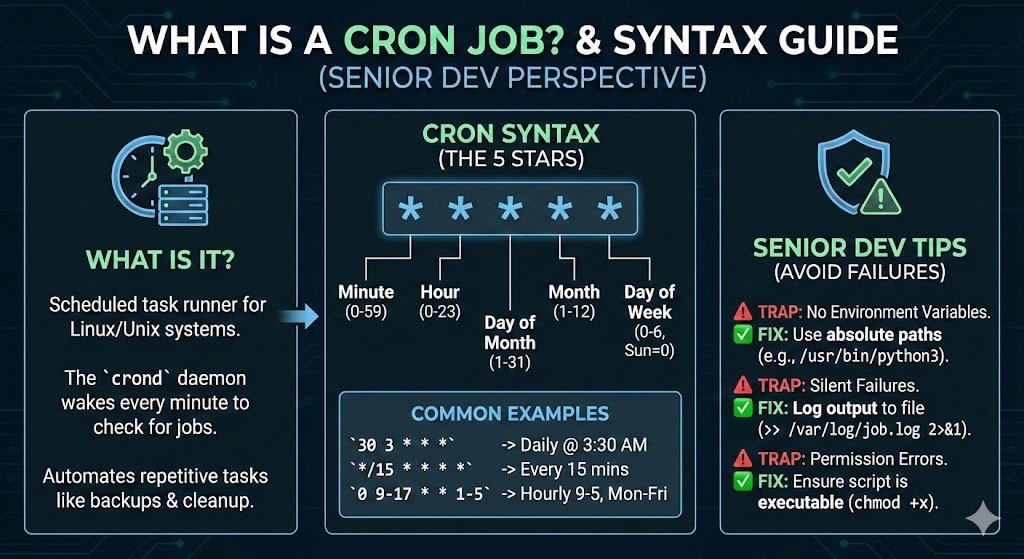
At its core, a cron job is simply a scheduled task. It is a command or a script that you assign to the cron daemon to run at a specified interval.
The cron daemon (usually named crond) is a background process that runs continuously on Linux and Unix-like systems. It wakes up every single minute, checks the schedule files (known as crontabs), and asks, “Is there anything I need to do right now?”
If the current minute matches a task’s schedule, cron executes it. If not, it goes back to sleep until the next minute ticks over.
What makes cron so ubiquitous is its stability. It has been around since the 1970s. It doesn’t need a fancy GUI, it doesn’t consume heavy resources, and unless you mess up the configuration, it just works.
Crontab Explained: Where the Magic Happens
You don’t talk to the cron daemon directly. Instead, you interact with a configuration file called a crontab (short for “cron table”).
Every user on a Linux system can have their own crontab. This is an important distinction. If you schedule a job under your user account (sam), it runs with your permissions. If you schedule it under root, it runs with unlimited system privileges.
To view your current cron jobs, you type:
crontab -lTo edit your cron jobs, you type:
crontab -eWhen you run crontab -e for the first time, it will ask you to choose a text editor (usually Nano or Vim). Once you’re in, you’ll see a blank file where you can dump your schedule commands.
But before you start typing, you need to understand the language cron speaks.
Cron Syntax: The Five Stars
This is the part that scares people away. Cron syntax looks cryptic at first glance. It’s a string of five asterisks followed by a command.
It looks like this:
* * * * * /path/to/commandIf you don’t know what position represents what time unit, you are guessing. And in server management, guessing is how you accidentally reboot a production server at 2 PM instead of 2 AM.
Here is the breakdown of the five fields, in order from left to right:
- Minute (0 – 59)
- Hour (0 – 23)
- Day of Month (1 – 31)
- Month (1 – 12)
- Day of Week (0 – 6) (Sunday is 0 or 7)
So, a breakdown looks like this:
* * * * * command to execute
  |       |       |       |       |
minute   hour   day-of  month   day-of
                month            week
The Power of Wildcards and Operators
The asterisk (*) is a wildcard that means “every.” If you put * in the hour column, it runs every hour.
However, we rarely run things “every minute of every day.” To refine the schedule, we use a few special operators:
- Comma (
,): Used to list multiple values.- Example:
1,15,30in the minute field means run at the 1st, 15th, and 30th minute.
- Example:
- Hyphen (
-): Used to define a range.- Example:
1-5in the day-of-week field means run Monday through Friday.
- Example:
- Slash (
/): Used for step values (intervals).- Example:
*/15in the minute field means “every 15 minutes.”
- Example:
Real Cron Job Examples
Let’s look at some practical cron job examples that I’ve actually used in production environments.
1. The “Every Morning” Backup
You want to run a backup shell script every day at 3:30 AM.
30 3 * * * /home/sam/scripts/backup.sh2. The Business Hours Monitor
You have a script that checks if your website is up, but you only want it to run during business hours (9 AM to 5 PM), Monday through Friday.
*/10 9-17 * * 1-5 /usr/bin/python3 /scripts/monitor.py
Translation: Run every 10 minutes (*/10), between hours 9 and 17 (9-17), every day of the month (*), every month (*), but only on weekdays (1-5).
3. The Quarterly Cleanup
You want to rotate logs on the 1st day of every quarter (January, April, July, October) at midnight.
0 0 1 1,4,7,10 * /usr/bin/cleanup_logs.sh
The “Senior Dev” Advice: Why Your Cron Jobs Will Fail
I have reviewed code for junior developers who swore their cron job was correct, yet it never ran. The syntax was perfect. The logic was sound. So what went wrong?
Here are the hidden traps of cron that documentation often glosses over.
1. The Environment Variable Trap
This is the number one reason cron jobs fail.
When you run a command in your terminal, you have a rich environment loaded. Your .bashrc or .zshrc file has loaded paths to Java, Node, Python, and other tools. You type python script.py and it works.
Cron does not have your environment.
Cron runs in a very stripped-down shell. It often doesn’t know where node or python is installed.
The Fix: Always use absolute paths.
- Bad:
30 * * * * python script.py - Good:
30 * * * * /usr/bin/python3 /home/sam/projects/script.py
2. The “Silent Failure” Problem
Cron is silent by default. If your script crashes, cron doesn’t pop up a notification. It might try to email the local user account (which nobody checks), or it just swallows the error.
I once had a payment processing script fail for three weeks because a library update broke the code. I didn’t know because the cron job was failing silently in the background.
The Fix: Log your output. You should redirect standard output (stdout) and standard error (stderr) to a log file so you can debug later.
0 0 * * * /home/sam/backup.sh >> /var/log/backup.log 2>&1The >> appends the output to a file. The 2>&1 ensures that errors (stream 2) are sent to the same place as standard output (stream 1).
3. Permissions and the Executable Bit
If you are pointing cron to a shell script (like .sh), that script must be executable.
I can’t count how many times I’ve seen a developer pull a script from Git, set up the cron, and walk away, only to find it never ran because they forgot to run:
chmod +x /path/to/script.shAlso, ensure the user running the cron job actually has permission to access the file and the folder where logs are being written.
Advanced Cron: Special Strings and Directories
If the asterisks are giving you a headache, cron supports a few “nicknames” for common intervals. While these are easier to read, they are less flexible.
@reboot— Run once, immediately after the server starts up. (Great for starting web servers).@daily— Run once a day at midnight (Same as0 0 * * *).@weekly— Run once a week on Sunday at midnight.@hourly— Run once an hour at the beginning of the hour.
The /etc/cron.d Directory
For system-wide packages or when you are managing infrastructure as code (using tools like Ansible or Terraform), editing a user’s crontab with crontab -e is messy.
Instead, you can drop a file into the /etc/cron.d/ directory.
The syntax here is slightly different because you must specify which user the command runs as.
Standard Crontab: * * * * * /command
System Crontab (/etc/cron.d/): * * * * * root /command
This is cleaner for production applications because it keeps your application’s schedule isolated in its own file rather than cluttered in a list with everything else.
Debugging Cron
When things go wrong—and they will—you need to know where to look.
Since cron runs in the background, you can’t just watch it happen. The first place to check is the syslog. On Ubuntu/Debian systems, you can usually grep the cron logs like this:
grep CRON /var/log/syslogThis will tell you if cron attempted to run your job.
- If you see the log: Cron tried to run it, but the script likely failed internally (check your custom logs).
- If you don’t see the log: You likely messed up the schedule syntax, or the cron daemon isn’t running.
Summary
Cron jobs are the heartbeat of a healthy server. They handle the boring, repetitive maintenance tasks so you don’t have to. While modern tools like Systemd timers or cloud-based schedulers (like AWS EventBridge) are gaining popularity, the simple cron job remains the industry standard for its simplicity and reliability.
Mastering cron syntax takes a bit of practice, but once you understand the five-field layout and the importance of absolute paths, you have a powerful tool in your developer toolkit.
Just remember: always log your output, check your permissions, and please, for the sake of your sanity, don’t try to calculate complex cron expressions in your head.
👉 Use our Cron Job Builder to generate cron expressions instantly.

Sam is a Full-Stack Software Engineer and Cloud Architect. With deep expertise spanning Java, Python, React, and DevOps, he built Toolshref.com to provide developers with lightning-fast, privacy-first tools. Sam specializes in translating complex server-side logic and intricate frontend architectures into zero-fluff, highly actionable guides for modern developers.